



Adding Students & Classroom Leaders

Add your own Students and Classroom Leaders.
Easily and Instantly add or import up to 5000 students at one time. Hit this Quick Click pop-up to see how...
Student Self-Enrollment by Code
Create an Organization Code that students can use to instantly enroll in your classroom for FREE! Hit this Quick Click pop-up to see how...
Anonymize Your Student Records.
If privacy is a concern, you can anonymize your student enrollment. Hit this Quick Click pop-up to see how...

"We just enroll and organize everyone by Code. Each Classroom has a Group Code and they just self-enroll. Not that the other methods are hard, it's just that Codes are so easy..."

"We literally rely on all ways of onboarding and we use them all almost everyday. We have Codes on social media, we import rosters from our partner groups and we manually add parents or students who contact us directly."
Add Your Own Students & Class Leaders

Manually Add A Few Students
-
- Use the dropdown menu below to Select the Classroom that you would like to enroll your students into.
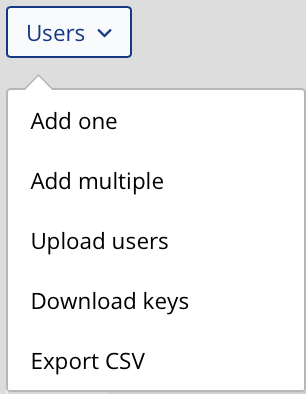
- Click on the "Users" button.
- Select "Add One" to enter a single STUDENT.
- Select "Add Multiple" to enter up to 20 STUDENTS at a time.
Manually Add Your Classroom Leaders
-
- Use the dropdown menu below to Select the Classroom that you would like to assign a Classroom Leader to.
- Scroll down the page to where it says Group Leaders and click on the "Add Group Leader" button.
- Enter the person's name and email address. The password will be auto-generated. Click on "Add Group Leader".
Upload Your Student Roster
-
- Use the dropdown menu below to Select the Classroom that you would like to enroll your students into.
- Click on the "Users" button.
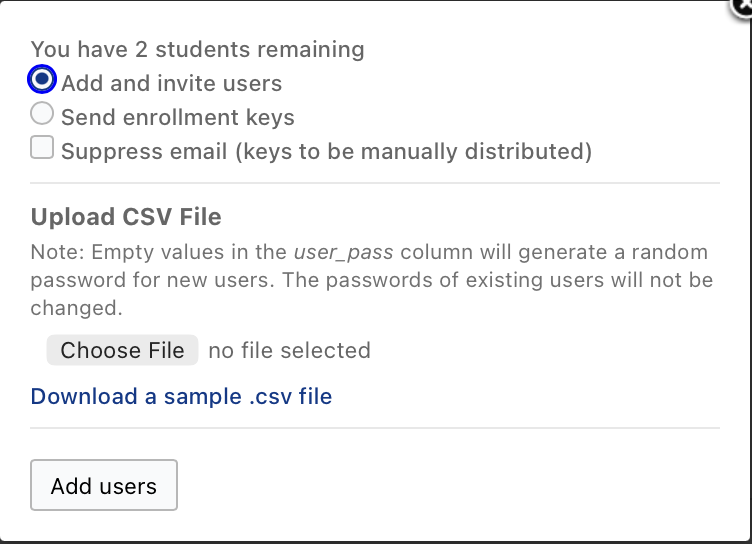
- Select "Upload Users".
- Choose your CSV File and click "Add Users".
No matter what size or type of an organization you represent, visualize your efforts here like that of a school. The stakeholders that you serve are your students. If you want, you can decide to organize those students into Classrooms.
Most larger Organizations find it useful to organize their students into groups that they can manage and monitor separately. So let's say that your Organization wants to place your 100 students, in 5 separate groups of 20 students each. You will create 5 separate Classrooms to do this.
Or maybe you want to separate your Staff Group, from your Student & Parent Groups. So you would create 3 different Classrooms.
Instead of 100 students that are all managed as one big group, you can now Manage, Monitor and Analyze each group independently. If you are not a school, you might use Classrooms to differentiate between different segments of the population that you serve.
Students Self-Enroll With Group Code
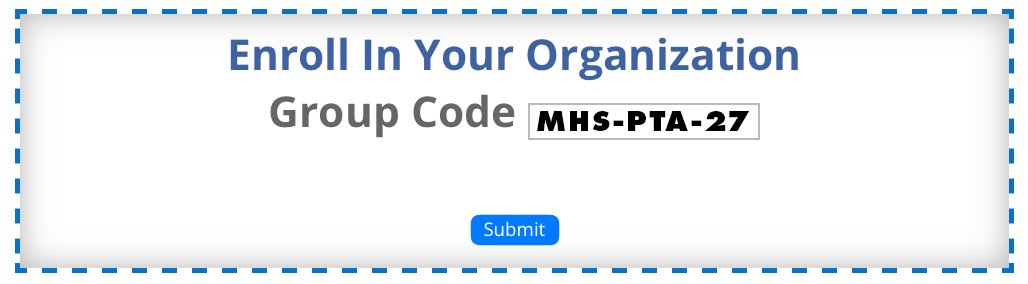

It takes less than 15 seconds to create a FREE account here. And if you give your students an Organization Code, they simply enter it during the registration process and POOF!
- They are instantly added to your Organization Dashboard.
- They are instantly organized into their Classroom.
- They can instantly start taking your lessons.
It costs them nothing and it takes almost no time for you to generate an Organization Code for each of your Classrooms.
You can use the codes to enroll new. students, or to move existing students into new Classrooms. Just display your code on a screen, send it in an email or flyer, post it on social media etc. Once they enter the code on their profile, everything is automatic.
Anonymizing Student Records
We Don't Want or Need Private Data
The only data we need in order to provide full functionality on this website, is a name and email address. We do not ask for anything else, and we do not need the information to be valid. But we do need the email address to work.
If privacy is a concern, you can provide proxy information for both of these data points. It is not a major request for most IT departments to translate a student roster into (1) an anonymized student ID, and (2) functioning proxy email address that forwards to the student's email box.
Practical Considerations
Your student's name is automatically printed on every certificate they receive from us, and our website does require 2FA validation for login, which is conducted via email. Also keep in mind that you will be responsible for translating the proxy student data, back into usable information on your end.
For many use cases though, simply using a first initial and partial last name will allow Classroom Leaders to easily identify their known students, while maintaining student privacy. *Names can be ommitted entirely if required.


Add Your Own Students & Class Leaders
Add Your Classroom Leaders
-
- Use the dropdown menu below to Select the Classroom that you would like to assign a Group Leader to.
- Scroll down the page and click on the "Add Group Leader" button.
- Enter the"Name" and "Email Address"
- The password will be automatically generated
- Sumbit the form!
Manually Add A Few Students
-
- Use the dropdown menu below to Select the Classroom that you would like to enroll your students into.
- Click on the "Users" button.
- Select "Add One" to enter a single STUDENT.
- Select "Add Multiple" to enter up to 20 STUDENTS at a time.
Upload Your Student Roster
-
- Use the dropdown menu below to Select the Classroom that you would like to enroll your students into.
- Click on the "Users" button.
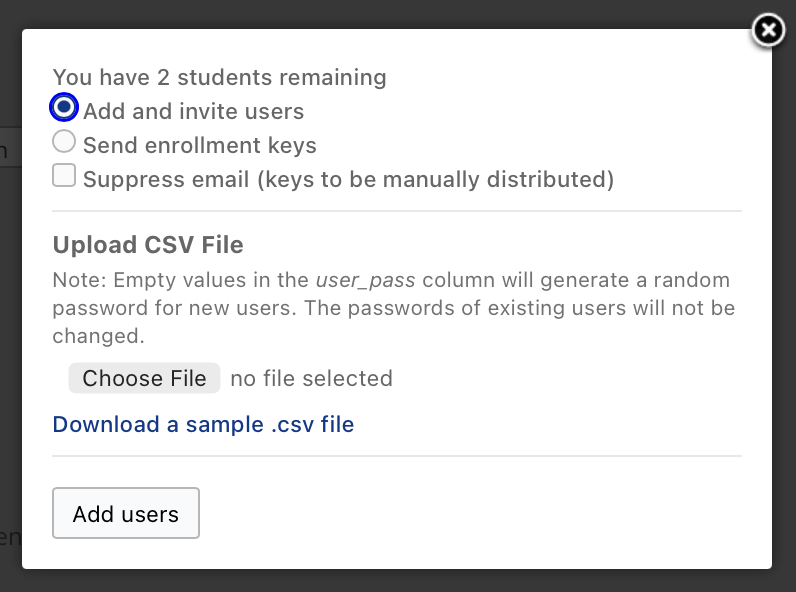
- Select "Upload Users".
- Choose your CSV File and click "Add Users".
Group Codes: Invite Your Students to Enroll Themselves
Enroll and Organize Students Using Codes
Whether you are an outreach organization, openly extending resources to a diverse community, or an institutional administrator directly serving a closed-group of students, you can invite your students to self-enroll by offering them an Organization Code.
Share your Code with your students in any way that you wish (Flyer, Email, Social Media, QR Code, Google Classroom etc.) Students can then register on our site for FREE, and redeem your code. They will Instantly join your organization, and enroll in your courses for FREE. They can do so On Demand, and at their Convenience with ZERO extra effort from you.
You can also use Organization Codes to move existing students into new, easily manageable Campaigns / Classrooms. If your High School has 100 existing students in the Class of 2027 Campaign, your Guidance or Health staff can easily distribute Codes so students can self-enroll into smaller groups that will be individually managed by teachers.
Community Organizations can distribute different Codes to different sectors of the community, (ie. Parents, Coaches, Religious Leaders, etc.); or they can create different Codes for different courses and for different outreach efforts. Students redeem the codes for FREE access, and are instantly organized into separate analytical groups.
It's Really Easy...For Everyone!
Just Create a Campaign that will be used to organize your students. Then click on the name of the Campaign and select the "Organizational Code", then click on the button to "Create New Organizational Code". Then just share the Code.
You can also select limitations on who can redeem the Code and how long it will remain active for. It's all right at your fingertips and the only limit is your imagination.
Easily Import Your Existing Student Roster
Preparing Your Existing Roster
You can easily import and organize your students using an existing student roster. For full functionality, our system only requires the student's:
-
- FIRST NAME
- LAST NAME
- EMAIL ADDRESS
Simply export your existing student roster as a CSV file. Remove all fields except for FIRST NAME, LAST NAME and EMAIL ADDRESS. (Easily done in Microsoft Excel). Then simply log into your account on our website and upload the roster to one of your Campaigns/Classrooms, using the "Enroll New User" button.
All students will instantly have an active student profile, and all students will automatically receive an email with their Username and Password.
*Please see this advice on "Organizing Student Rosters" before importing your students.
Anonymizing Student Records
We do not collect any sensitive data on your students. But if full student anonymity is a priority, you can completely mask any student identifiers from your roster.
The students EMAIL ADDRESS is used to log the student in and deliver notifications. A working email address is needed, but you can substitute a proxy address that forwards to your student's inbox. Consult your IT.
The email address also serves as a unique identifier that lets you link your courses to your students and track their progress. You cannot use a shared email address. But a unique proxy address is fine.
We only use NAMES to populate Certificates upon course completion, and to help you easily correlate analytical data with individual students. You may use any initials, or redacted identifiers you choose in these fields. Just consider how you will translate/interpret the data when reviewing your analytics.

Manually Add Smaller Groups of Students
Effortless Onboarding for Small Groups
It couldn't be any easier to add small groups of students to your organization. Whether it is a family of four, a Homeschool Group of fourteen, or a professional staff of forty, all you need is a list containing your student's FIRST NAME, LAST NAME and EMAIL ADDRESS. If student privacy is a concern, you can anonymize this information and use a functioning proxy email address for the student account.
Three Simple Steps
Log into your dashboard at Student Wellness Solutions. Create a new Campaign / Classroom, or select an existing Campaign to add the student(s) into. Once the right Campaign is selected, click "Invite or Enroll Students". Then click on "Enroll New User" and enter their information into the boxes. They will instantly be added to your group and appear on your Analytics Dashboard.
All students will instantly have an active student profile, and all students will automatically receive an email with their Username and Password.
*Please see this advice on "Organizing Student Rosters" before importing your students.
Using Organization Codes
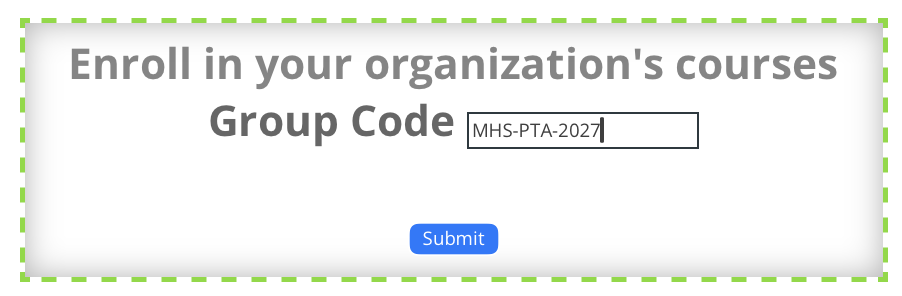
(Example Code: "MHS-PTA-2027")
When you offer a prospective student one of your Organization Codes, you give them the ability to register and begin taking your courses in less than 15 seconds flat; and it's completely FREE for them.
As soon as they use your code, that student will instantly be:
-
- Registered With Your Organization
- Organized Into Their Campaign / Classroom
- Enrolled In Your Courses
- Displayed On Your Student Analytics Dashboard
Organization Codes provide you with ENLESS VERSATILITY. You can create an unlimited number of codes and use them in very powerful ways. You can turn them on, turn them off, set limits on who can use them, set dates for auto-expiration and much more.
It's All So Easy!
Your students simply enter the code into the box on their profile page, and everything happens instantly. Students can redeem an unlimited number of Organization Codes. So the same student can use one code to be instantly organized into the "Class of 2027" macro student group, and use a second code to also be organized into the "Health One: 3rd Period" group. They will now be organized with the "Class of 2027" cohort, but can be managed and monitored on a classroom level by the teacher or guidance counselor of "Health One: 3rd Period". At the end of the year, the student can easily be removed from the "Health One; 3rd Period" group and reassigned to a new teacher. All their student records go with them, and they stay attached to the "Class of 2027" macro student group.
In another example, an Organization may choose to create temporary groups based upon class, club or team assignments, and run a contest for course completion. It becomes easy to compare the group's analytics and reward the winner. Another organization may simply use one Organization Code for an "Email Campaign", and another Organization Code for a "Social Media Campaign". They can then compare which effort resulted in a higher conversion rate. Or they can conduct the same comparison to determine what courses stimulate more interest in their community. By simply creating one Organization Code for the "Safer Social Media Course" and another Organization Code for the "Vaping Prevention Course", they can easily determine which topic is more relevant right now.
Using Codes as Gatekeepers:
When you create an Organization Code, you can easily restrict its use to students or staff using the email address of your school or company's domain (ie. HillcrestSchools.Org). This blocks anyone else from using it. So if you distribute a code that you've limited to students or staff using your school's email accounts, no one without a school email account can redeem the code. This prevents unauthorized sharing of your licensed "Seats".
One Caution About Codes:
Remember, (1) you can set limits on the number of students who can redeem each code. (2) You can also turn codes on or off, and (3) you can set dates for the auto-expiration of codes. As mentioned above, (4) you can also prevent codes from being redeemed by staff or students who don't use your school's email address. And finally, (5) you can distribute your codes in ways that do not live forever on the internet (Email, Flyer, Slide at Back to School Night etc.)
Just remember, each redemption of an Organization Code by a NEW STUDENT will pull a "Seat / User Registration" from your main licensing agreement. This cannot be undone. People do search the internet for Organization Codes and some of your community members will share the codes that you publicize. We cannot refund or replace "Seats" that are redeemed by students outside of your intended reach. If your organization has licensed a tightly limited number of "Seats", be careful with your codes.