



Organizing & Moving Students

Organizing Made Easy
Enrolling, Managing and Moving students is super easy to do. You can keep it sweet and simple, or you can create an endlessly detailed network of segmented cohorts. Our suggestion is to keep it as simple as possible, in order to accomplish your Management and Analytical goals.
This Pop-Up Explainer will help you evaluate your goals...
Organizing for Analytics
Organizing isn't just about logistics, it's about PERFORMANCE. Learn how your organizational methods determine the success of your efforts.
This Pop-Up Explainer makes it very clear...
Your Analytical Approach
Take a moment to plan out your organizational table. If you have 100 students enrolled in your organization, you have 100 individuals that are really only differentiated by their Email Address. If you want to be able to apply other filters, to differentiate your students, you should plan out your approach now.
This Pop-Up Explainer can save you a ton of frustration...
Organizing Made Easy
Enrolling, Managing and Moving students is super easy to do. You can keep it sweet and simple, or you can create an endlessly detailed network of segmented cohorts. Our suggestion is to keep it as simple as possible, in order to accomplish your Management and Analytical goals.
This Pop-Up Explainer will help you evaluate your goals...
Organizing for Analytics
Organizing isn't just about logistics, it's about PERFORMANCE. Learn how your organizational methods determine the success of your efforts.
This Pop-Up Explainer makes it very clear...
Your Analytical Approach
Take a moment to plan out your organizational table. If you have 100 students enrolled in your organization, you have 100 individuals that are really only differentiated by their Email Address. If you want to be able to apply other filters, to differentiate your students, you should plan out your approach now.
This Pop-Up Explainer can save you a ton of frustration...




Instructions to Move or Remove Students | Leaders from a Classroom
Moving Students Into or Out of Groups
It's Super Easy to Move Students
Between Groups and Organizations
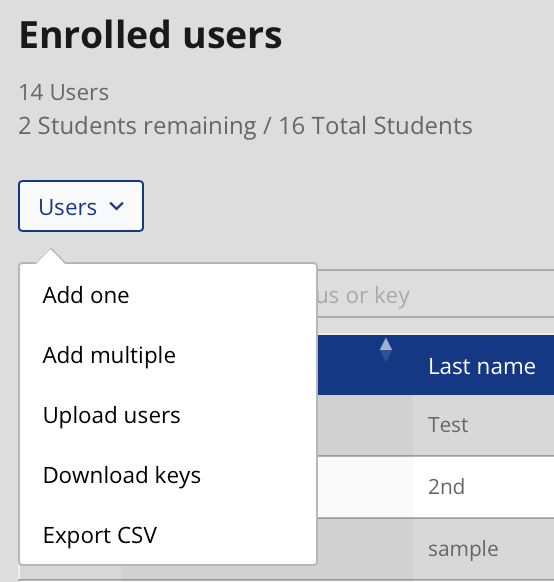
If the students are staying together but you want to change their group name, you can just Edit the Existing Classroom Name Here.
If the students are changing Organizations altogether, or if you want to merge classrooms etc., you can EXPORT a list of your entire student body, or the student body from any of your individual Classrooms. If they are an existing student, their course records will move with them.
To do that, you just scroll down this page to the Group menu and Select the Classroom you want to work with.
- Click the box that selects all students.
- Click the "Users" button.
- Select "Export CSV".
If you want to UPLOAD that list of students to a new Classroom, you follow the exact same sequence, but select "Upload Users" from the "Users" menu.
If you want to REMOVE students or leaders from a Classroom, you display that Classroom, select the box next to the Student or Group Leader and then select "Remove Users" from the "Users" menu.
If you want to ADD a small number of students to a Classroom, just select that Classroom and choose "Add User".
Organizing Classrooms for Analytics
Create Your Custom Data
We don't harvest private or personal data from our students. We don't pull in any information from data brokers. In fact, we want as little personal information as possible. What we do, is simply measure your student's interactions with our courses.
The way you leverage that specific data, is by trying out different courses, advertisements, incentives, partnerships, and other methods reaching your community. Compare the results of your efforts. Find out what moves the needle and build on that.
In a very short period of time, you will see what produces results, and what clearly doesn't. Your success rates will increase incrimentally. A year from now, you will likely be seeing results that are incomparable to what your organization saw at their last educational event.
Start by A/B Testing your Classrooms, using metrics like: Lesson Subject, Lesson Length, Advertising Method, Incentive Offered for Completion etc..
You can also segment your own students by differentiating between: Neighborhood, Age, Interests, Club Attendance, Community Affiliations etc..
Just create different "Classrooms" for these categories, and invite or enroll your students into them. The data will be there for you.
Download A Blank Planning Template
Organize For Analytics
Classrooms are not just tools that you use to separate and manage students, they are tools that you will use to separate and evaluate your efforts.
Let's say that you start with the same 100 students, but you want to know what will get them to engage with you or your lessons. You create separate Classrooms to target the same students, but in different ways. Classroom A, for example, offers no incentive and no deadline for course completion. You invite or enroll 50 of your students into that Classroom. Classroom B, offers an incentive for completion and also imposes a deadline. You invite the other 50 students into that Classroom.
You can now measure the results of those two efforts against each other on your Analytics page. And you will know what produces better results. If you run this experiment multiple times, you will DRAMATICALLY increase the success of your efforts.
What You Don't Know
You don't need Tik Tok or an influencer to get incredible results!
You need to know what specific actions on your part, will make ALL THE DIFFERENCE when it comes to achieving success with your community. Right now, you don't know that. But we're going to change things for you.

How We Help You
You start with an idea and an audience. You offer one of our Wellness Lessons to your prospective students at no charge to them. You create "Classroom A": Give it an Organizational Code, and you invite your students using a simple and general email. All of the data regarding the success of that easy effort will appear on your Analytics page. But wait...
Now you create "Classroom B": Assign it a different Organizational Code, but choose the same course. This time, instead of a general email, invite students through the school Parent Portal and offer a homework pass for any student whose parent completes the course by the end of the day. Our system confirms their completion and feeds all of the data to your Analytics page. Now you can compare the results between the two "Classrooms."
This is a real life example, and "Classroom B" outperformed "Classroom A" by over 8000%!
Is the lightbulb turning on?
Having A Great Idea Isn't Enough
Neither great information, nor great intentions, sell themselves today. Things have changed.
You're stakeholders aren't ignoring you. In fact they need you now more than ever. But they need you to break through the distractions and information overload of their modern day.
You can build your partnerships, and enhance your footprint within the community. You can absolutely increase your influence with stakeholders today. But you need better tools to do it. We put those tools at your fingertips.

It Isn't Expensive
With licensing as low as $3.49 per student, our services are affordable for everyone. From small families and homeschools, to Organizations serving thousands, we have a partnership program to fit your needs.
The Basics: Organizing Purely For Logistics
Student Management
The most basic use of organizing students by "Classroom" is obvious, it helps you break large groups of students up into more manageable cohorts. These smaller groups can then be supervised by individual staff.
Curriculum Management
Even small families may find "Classrooms" to be useful. If you just Add or Invite students into your main "Organization", they will instantly get access to ALL of your licensed lessons, ALL at once. There is no filter.
You may want to offer your students different classes at different times. Or you may decide not to overwhelm your students by giving them access to every lesson, all at once. If this is the case, you will create One "Classroom" and add your small group into that classroom. Then you can move courses and lessons into that Classroom as you wish. Your students will only access what you put there. You can then drip content to them whenever you want, and keep it manageable.
No Need To Organize?
If you do not have large groups of students OR you do not need to offer your students different courses at different times, you do not need "Classrooms" to accomplish your logistical goals. Every student that you Add or Invite will get instant access to all of our lessons.
HOW MUCH DETAIL DO YOU NEED?
Are Your Goals Simple or Strategic?
It all comes down to goals, and when it comes to organizing your students, we all have the same two goals; Management and Analytics. We recommend that you keep this as simple as possible, while still accomplishing your goals.
Goal 1: Management Can one person assign, monitor and manage all of your students as one group? Can they all be offered the same courses at the same time? If these answers are yes, keep it simple and stick with one general Campaign (ie. "Our Students")
On the other hand, if you have 100 or 1,000 students, that will be assigned to different staff members for managment, you will want those staff members to have their own Campaigns / Classrooms. That will allow them to filter their 25 students from the larger group and deal directly with them.
Goal 2: Analytics Every student profile will provide you with lots of data, including Activity Dates & Times, Last Login, Cumulative Time Spent, Course Completion Rates, Quiz Attempts & Scores, Certificates & CEU's earned, and much more. If that is all you need, you do not need more than on general Campaign (ie. "Our Students").
On the other hand, if you are looking to compare performance metrics between different segments of students, or different segments of outreach efforts, you will want those students or efforts to have their own Campaigns / Classrooms. This will allow you to run side-by-side reports and compare filtered outcomes.
An example of this would be comparing the self-enrollment rates achieved by sharing a Code on social media, versus the self-enrollment rates achieved by distributing a different Code on a flyer. Or perhaps you want to offer a Course Completion incentive to one group, but not the other. If you place the groups into separate Campaigns, you can easily distinguish between the outcomes.

Easily Import Your Existing Student Roster
Preparing Your Existing Roster
You can easily import and organize your students using an existing student roster. For full functionality, our system only requires the student's:
-
- FIRST NAME
- LAST NAME
- EMAIL ADDRESS
Simply export your existing student roster as a CSV file. Remove all fields except for FIRST NAME, LAST NAME and EMAIL ADDRESS. (Easily done in Microsoft Excel). Then simply log into your account on our website and upload the roster to one of your Campaigns/Classrooms, using the "Enroll New User" button.
All students will instantly have an active student profile, and all students will automatically receive an email with their Username and Password.
*Please see this advice on "Organizing Student Rosters" before importing your students.
Anonymizing Student Records
We do not collect any sensitive data on your students. But if full student anonymity is a priority, you can completely mask any student identifiers from your roster.
The students EMAIL ADDRESS is used to log the student in and deliver notifications. A working email address is needed, but you can substitute a proxy address that forwards to your student's inbox. Consult your IT.
The email address also serves as a unique identifier that lets you link your courses to your students and track their progress. You cannot use a shared email address. But a unique proxy address is fine.
We only use NAMES to populate Certificates upon course completion, and to help you easily correlate analytical data with individual students. You may use any initials, or redacted identifiers you choose in these fields. Just consider how you will translate/interpret the data when reviewing your analytics.

Understanding Your Analytical Hierarchy
It's really easy to understand how this all works. Just keep these rules in mind.
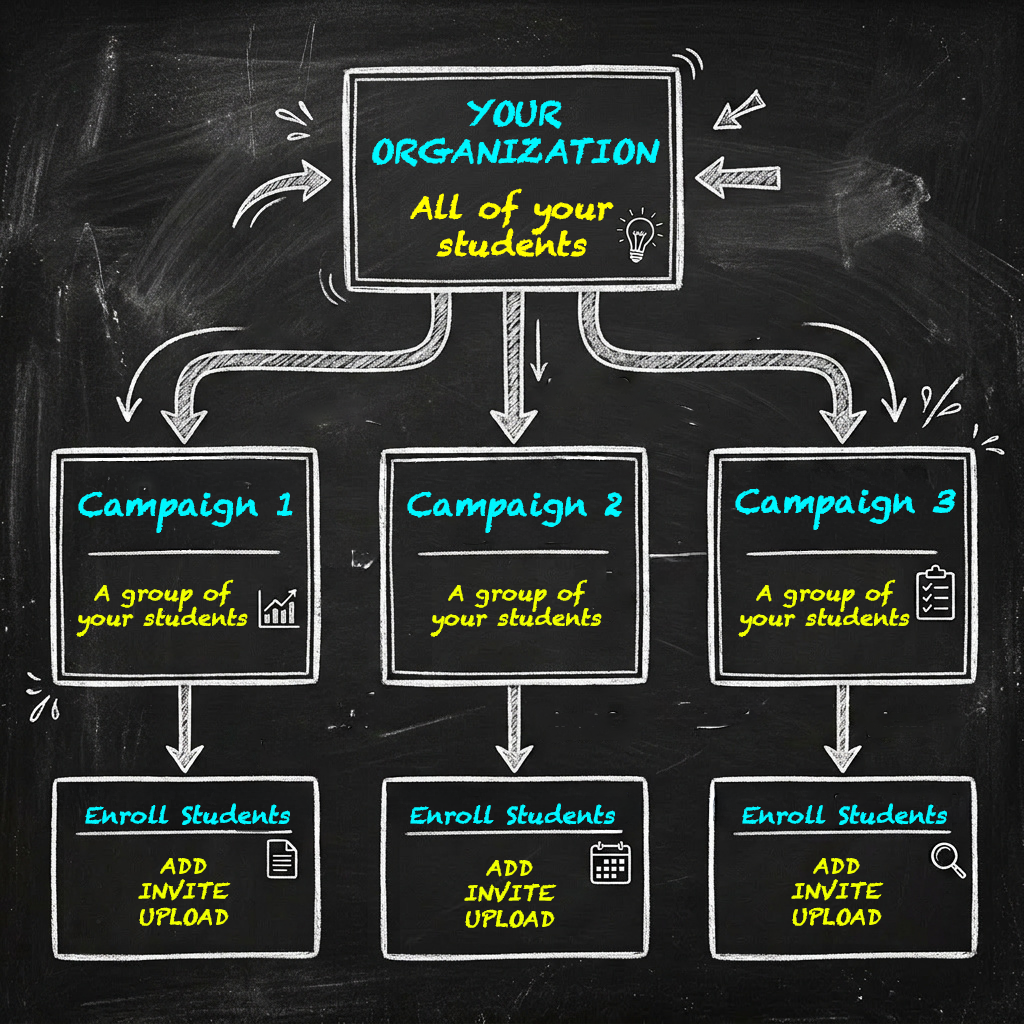
Basic Rule #1: Every Campaign Always Feeds Into Your Main Analytical Pool
Whether you have 1 or 100 Campaigns, they will always feed into your Main Analytical Pool and you will always have Macro-Level analytics on all of your students and all of your Campaigns.
Basic Rule #2: Your Campaigns are just filters that you can apply to separate students from the Main Analytical Pool, in order to manage or analyze them as their own group.
If there are categorical differences in your students, you'll want to enroll them into different Campaigns right from the start. (ie. "Class of 2027 Students", "Class of 2027 Parents", "Staff"). These Campaigns can then travel with those students through time, and you can apply or remove new filters to each one of those groups as needed; such as for new teacher or course assignments.
Basic Rule #3: Timing Really Matters
It's ALWAYS easier to enroll students directly into a specific Campaign at the time they join your organization. You can usually move them later, but it can be more work. Remember, there is very little data linking your students together as a group, so it can be harder to re-constitute segments of students once they have been diluted into your general student roster.
Deleting Students & Campaigns! If you delete a student from a Campaign, or delete an entire Campaign from your Organization, all of the students and student records are still part of your Main Analytical Pool. If you delete a student from a Campaign, they can be re-added to the Campaign and their records will come with them. BUT once you delete a Campaign, it's gone and would have to be rebuilt. And if you delete a student from your Main Student Roster, they and their records are instantly removed from our system and cannot be recovered.
Using Organization Codes

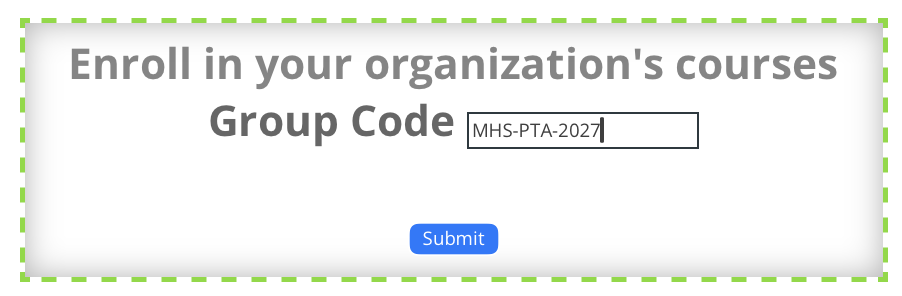
(Example Code: "MHS-PTA-2027")
When you offer a prospective student one of your Organization Codes, you give them the ability to register and begin taking your courses in less than 15 seconds flat; and it's completely FREE for them.
As soon as they use your code, that student will instantly be:
-
- Registered With Your Organization
- Organized Into Their Campaign / Classroom
- Enrolled In Your Courses
- Displayed On Your Student Analytics Dashboard
Organization Codes provide you with ENLESS VERSATILITY. You can create an unlimited number of codes and use them in very powerful ways. You can turn them on, turn them off, set limits on who can use them, set dates for auto-expiration and much more.
It's All So Easy!
Your students simply enter the code into the box on their profile page, and everything happens instantly. Students can redeem an unlimited number of Organization Codes. So the same student can use one code to be instantly organized into the "Class of 2027" macro student group, and use a second code to also be organized into the "Health One: 3rd Period" group. They will now be organized with the "Class of 2027" cohort, but can be managed and monitored on a classroom level by the teacher or guidance counselor of "Health One: 3rd Period". At the end of the year, the student can easily be removed from the "Health One; 3rd Period" group and reassigned to a new teacher. All their student records go with them, and they stay attached to the "Class of 2027" macro student group.
In another example, an Organization may choose to create temporary groups based upon class, club or team assignments, and run a contest for course completion. It becomes easy to compare the group's analytics and reward the winner. Another organization may simply use one Organization Code for an "Email Campaign", and another Organization Code for a "Social Media Campaign". They can then compare which effort resulted in a higher conversion rate. Or they can conduct the same comparison to determine what courses stimulate more interest in their community. By simply creating one Organization Code for the "Safer Social Media Course" and another Organization Code for the "Vaping Prevention Course", they can easily determine which topic is more relevant right now.
Using Codes as Gatekeepers:
When you create an Organization Code, you can easily restrict its use to students or staff using the email address of your school or company's domain (ie. HillcrestSchools.Org). This blocks anyone else from using it. So if you distribute a code that you've limited to students or staff using your school's email accounts, no one without a school email account can redeem the code. This prevents unauthorized sharing of your licensed "Seats".
One Caution About Codes:
Remember, (1) you can set limits on the number of students who can redeem each code. (2) You can also turn codes on or off, and (3) you can set dates for the auto-expiration of codes. As mentioned above, (4) you can also prevent codes from being redeemed by staff or students who don't use your school's email address. And finally, (5) you can distribute your codes in ways that do not live forever on the internet (Email, Flyer, Slide at Back to School Night etc.)
Just remember, each redemption of an Organization Code by a NEW STUDENT will pull a "Seat / User Registration" from your main licensing agreement. This cannot be undone. People do search the internet for Organization Codes and some of your community members will share the codes that you publicize. We cannot refund or replace "Seats" that are redeemed by students outside of your intended reach. If your organization has licensed a tightly limited number of "Seats", be careful with your codes.